No account for the core workflow2 free OffloadsEmail us

A brain dump app that sends clean tasks to Apple Reminders, Calendar, and Notes.

Speak or type the messy version first. Offload pulls out tasks, events, and notes, lets you review them, and sends each one where it belongs: tasks to Apple Reminders, events to Calendar, notes to Apple Notes.

Download on the App Store

Start with 2 free Offloads. No account for the core workflow. Nothing is sent until you review it.

Brain dump to tasksReview before sendWorks with the Apple apps you use
Clean tasks go toRemindersCalendarNotes

Proof

A messy dump goes in. A short list of tasks comes out.

This is the shift Offload is built for. You do not need to phrase the task perfectly while you are still trying not to lose it. Start with the swirl, then review the cleaner version.

Errands and follow-ups

Messy thought

Need to call the dentist tomorrow, grab milk and eggs after work, pay the internet bill before Friday, and send the latest app build tonight.

Clean result

  • Call the dentist tomorrow
  • Buy milk and eggs after work
  • Pay the internet bill before Friday
  • Send the latest app build tonight

Family logistics

Messy thought

Book the haircut this week, pick up the prescription on the way home tomorrow, take the dog to the vet Saturday at 10, and remember the school form.

Clean result

  • Book haircut this week
  • Pick up prescription on the way home tomorrow
  • Take the dog to the vet Saturday at 10:00 AM
  • Send or pack the school form

Mixed mental load

Messy thought

Return the Amazon package, back up the laptop this weekend, buy a birthday gift for Alex before the end of the month, and cancel the free trial before it renews.

Clean result

  • Return the Amazon package
  • Back up the laptop this weekend
  • Buy Alex a birthday gift before the end of the month
  • Cancel the free trial before it renews

In short

What is Offload?

Offload is an iPhone app that turns a messy brain dump into tasks, calendar events, and notes. You speak or type everything on your mind, in any order, without formatting it first. Offload's AI separates the action items from the rest, picks up dates you mention, and shows you a review screen. Nothing is sent until you approve it. Then each item goes to the Apple app you already use: tasks to Apple Reminders, events to Apple Calendar, and notes to Apple Notes. Offload does not replace those apps or ask you to learn a new planning system. It handles the step before planning, when thoughts arrive faster than you can organize them. It is built for ADHD adults, overwhelmed parents, and people who already rely on Apple Reminders. The core workflow needs no account. You get 2 free Offloads, and after that Premium costs $7.99 a month or $47.99 a year.

Why it fits

Built for the overloaded moment most apps skip.

Offload is for the moment when thoughts are fragile and structure would slow you down. It helps before planning, not after.

Instead of asking you to name every reminder cleanly one by one, it lets you say the whole messy version first. Then you review the clean version with a calmer brain.

Who it helps

Offload is built for ADHD adults, overwhelmed parents, and Apple Reminders users.

The workflow is narrow on purpose. Offload is not trying to be everything. It is for people who need a calmer way to catch the thought before it disappears.

For ADHD adults

When thoughts arrive fast and disappear faster, Offload gives you a place to say the messy version first and figure it out second.

For overwhelmed parents

School tasks, groceries, forms, appointments, and household follow-through do not arrive one at a time. Offload helps you unload the whole swirl before something gets dropped.

For Apple Reminders users

If you already trust Apple Reminders, keep it. Offload handles the messy capture step first, then hands the clean tasks back to the system you already use.

What it catches

A single brain dump can hold tasks, calendar items, and notes.

Real brain dumps usually mix reminders, ideas, appointments, errands, and half-formed follow-ups together. Offload is built to separate the useful pieces before they get lost in one big note.

Tasks and reminders

The most common Offload use case is pulling real tasks out of a messy stream before they disappear. That includes errands, follow-ups, household jobs, work tasks, and the small things that usually get dropped.

  • Calls, emails, appointments to book, and errands to run
  • Work follow-ups, family logistics, groceries, and household tasks
  • A review step before anything gets sent into Apple Reminders

Notes worth keeping

Not every thought is a task. Some brain dumps include ideas, things to remember, or rough notes for later. Offload helps separate those from the action items so your list stays cleaner.

  • Ideas you do not want mixed into your task list
  • Loose thoughts that need to stay visible without becoming reminders
  • Messy notes that need sorting before they feel usable

Calendar items and time-based plans

Some dumps contain actual events, not just tasks. Meetings, appointments, pickups, and scheduled moments can be reviewed as calendar items instead of getting buried inside a giant note.

  • Appointments and meetings with dates or times hidden in natural language
  • Family logistics like pickup windows, vet visits, and school events
  • A cleaner split between what belongs on a calendar and what belongs in reminders

Compare paths

Most people are choosing between Notes, Reminders, voice, and a planner.

It is usually one of these: Is Notes enough? Should I just use Reminders? Is voice better than typing for me? Or do I actually need a bigger planning app? Offload sits in that gap before the task is clean.

Offload vs Apple Notes

For people searching whether Notes is enough, the real difference is simple: Notes can hold the mess, but it does not separate the action items for you.

Offload vs Apple Reminders

If you already trust Reminders, the question is not whether to replace it. The better question is whether you need help before the task reaches Reminders at all.

Voice capture vs typing

Some people need to speak because the thought is moving too fast. Others type because they want more control. Both can work, but they solve different kinds of friction.

Offload vs full planning apps

If your tasks are already clear, a planner may be enough. Offload is strongest earlier, when the thought is still noisy and structure would slow you down.

Best fit

Offload is for the step before planning, so know if that is your problem.

Offload is intentionally narrow. It helps you catch a messy thought before it is a clean task. If your tasks are already clear and planning is the hard part, a planner such as Todoist may be the better first tool.

Best fit for Offload

Offload is strongest when the thought is still messy and the task disappears before you can enter it cleanly.

  • You keep rewriting giant notes into reminders later.
  • You already trust Apple Reminders but hate filling it one task at a time.
  • Voice capture feels easier than structured planning in the moment.

Better fit for a planner first

A planning app may be the better first tool if your tasks are already clear and your friction starts after capture.

  • You need projects, priorities, and structured review.
  • You want a full task manager more than a brain-dump workflow.
  • Your main problem is organizing work, not catching the thought fast.

How it works

Speak or type it. Review what Offload finds. Send it where it belongs.

Your head was not built to hold all of this. Offload helps you catch the messy version first, then turn it into a clean result you can trust.

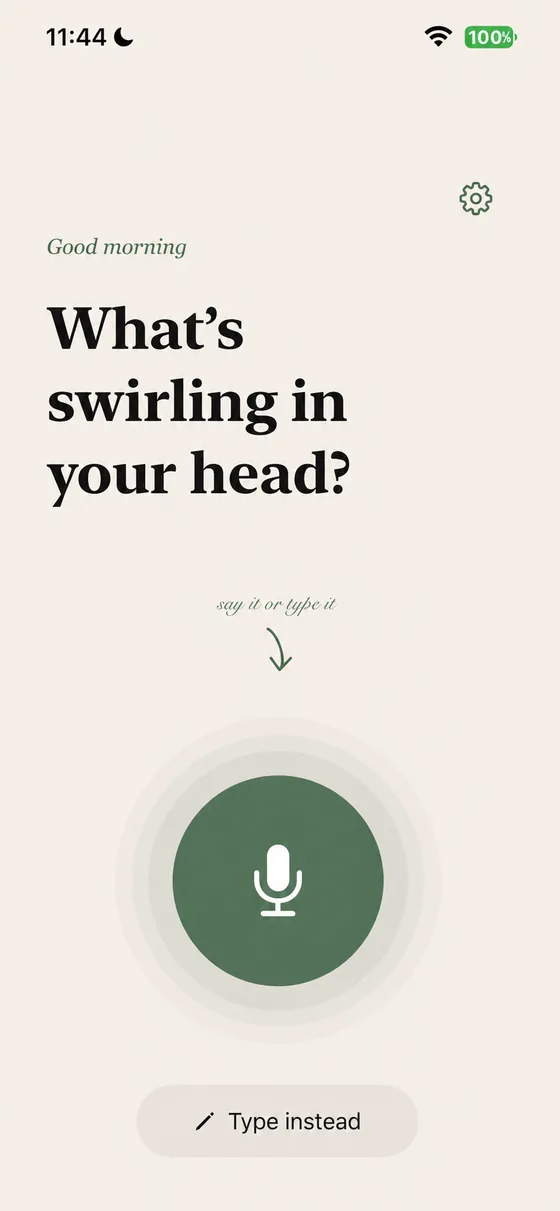
Offload brain dump input screen

DUMP

Everything in your head

Speak or type freely — rambling is fine. No structure needed before you start.

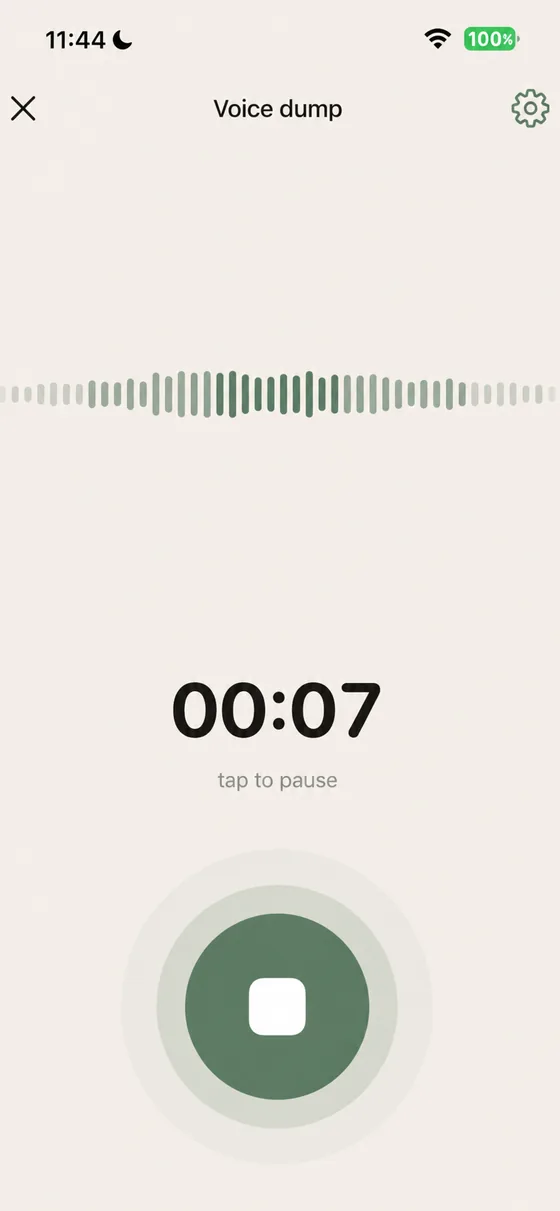
Offload voice recording screen

SPEAK

Catch the thought fast

Start talking before the thought slips away. Offload is built for the messy version, not the polished one.

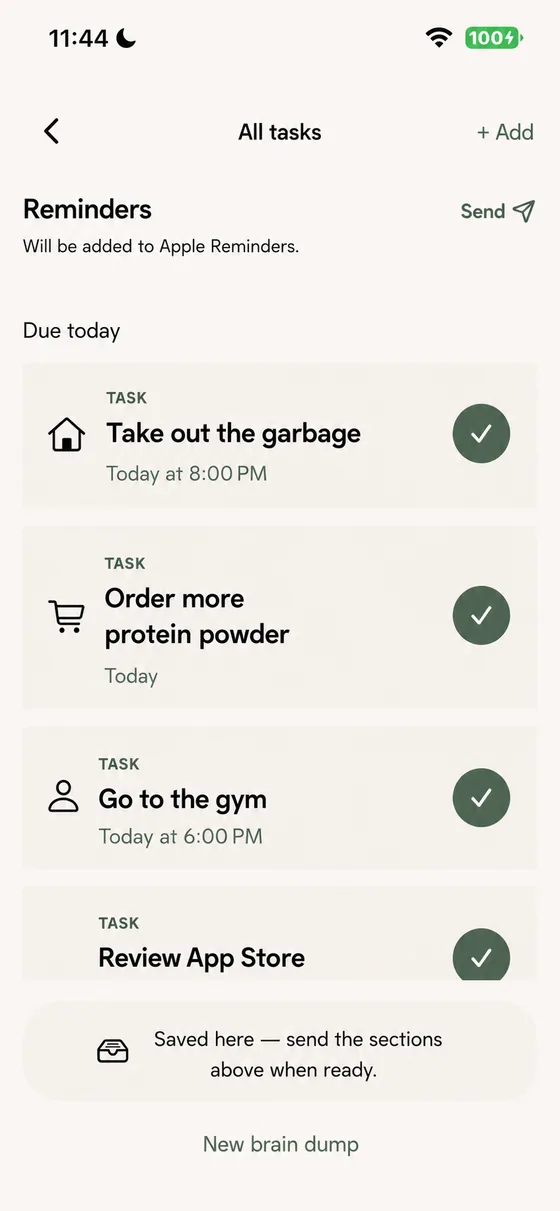
Offload confirmation screen after sending tasks to Reminders

SEND

Send to Reminders, Calendar, or Notes

Review the tasks, calendar items, and notes, edit anything you need, then send each section with its own tap. Tasks go to Apple Reminders, calendar items to Calendar, and notes to Notes.

Why it helps

Most ADHD-friendly apps still expect you to organize first.

Some days the problem is not motivation. It is too many open loops competing for space at once while you are still trying to decide what matters.

Offload gives those thoughts somewhere to go before they disappear, then turns them into something reviewable after the messy part is safely out of your head.

Reminders, Calendar, and Notes stay the destinations because they are already where many people are trying to hold things together. No new place to check.

Trust

Honest pricing. No traps.

No account required

The core workflow does not start with a login wall. Start with a real offload during onboarding, then decide later whether Premium is worth it.

You review before anything is sent

Offload extracts the tasks, calendar items, and notes, then waits. You can edit, delete, or approve each one before it is sent to Reminders, Calendar, or Notes.

Help is public and easy to find

Support, privacy, and terms are all available on the site. That matters for trust when you are deciding whether to try a new app.

Monthly

$7.99 / month

Annual

$47.99 / year

  • Start with 2 free Offloads, so you can feel the workflow before deciding.
  • Review tasks, notes, and calendar items before anything is sent where it belongs.
  • Cancel anytime. The paywall links straight to Apple's instructions for cancelling.

Questions about billing, reminders permissions, or privacy? Visit support or read the privacy policy.

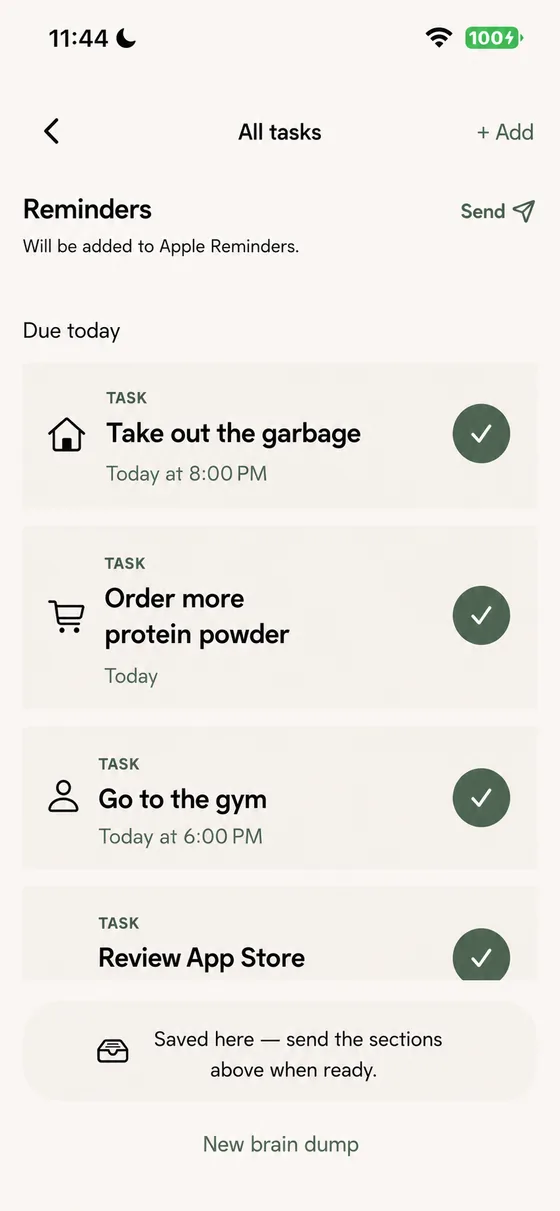
Tasks ready to send from Offload into Apple Reminders

Learn the workflow

Guides on brain dumps, Apple Reminders, and ADHD task capture.

These guides cover brain dumps, Apple Reminders workflows, family logistics, and the overloaded moments where thoughts arrive too fast to organize cleanly.

Brain dumpsApple RemindersFamily logisticsTask captureADHD mental load
Browse all articles

education

Apple Reminders Grocery List Guide

Apple Reminders can work really well for grocery lists when the setup stays light. The goal is not a perfect shopping system. The goal is not forgetting what you need.

FAQ

Questions people ask before they trust a brain-dump app.

These answers stay narrow on purpose: what Offload does, what it does not do, and where to go if you need help.

What is Offload?

Offload is an iPhone brain-dump app for ADHD adults and overwhelmed parents. You speak or type the messy version, review the tasks, calendar items, and notes it pulls out, then send tasks to Apple Reminders, events to Calendar, and notes to Apple Notes.

How is Offload different from Apple Reminders?

Offload works before Apple Reminders, not instead of it. Reminders stays the place your tasks live. Offload handles the messy capture-and-sorting step first, so you do not have to type each reminder by hand or rewrite a long note later.

Is Offload better than using Notes?

If your only problem is capture, Notes may be enough. If the real problem is turning a long messy note into a usable list without rewriting it, Offload is the better fit. It finds the action items and sends the leftover notes to Apple Notes.

Is Offload good for ADHD?

Offload is built for ADHD adults who lose tasks when thoughts arrive too fast to organize. It lowers the effort of capture by letting you get the messy version out first and sort it afterwards, with a review step instead of a blank planner.

Can I use voice instead of typing?

Yes. Voice is one of the main ways to use Offload. It helps most when a thought feels fragile and talking is easier than typing clean tasks one at a time. You can also type, or mix both.

What kinds of things can Offload sort?

Tasks and errands, calendar items such as appointments and pickup times, and notes worth keeping. A single brain dump can mix all three, and Offload separates what needs action from what just needs to be kept.

Who should use a planner instead?

If your tasks are already clear and the hard part is scheduling, prioritizing, or managing projects, a full planner such as Todoist or Things 3 is a better first tool. Offload is intentionally narrow: it is for the step before planning.

Do I need an account?

No. Offload does not require a login to use the core brain-dump workflow.

Is my data private?

Offload does not require a personal account. Brain-dump text is sent only to the extraction service to turn it into tasks, and analytics do not include raw brain-dump text, extracted task titles, or reminder content.

What does AI actually do?

It reads the messy version, pulls out the real tasks, notes, and calendar items, and gives you a review step before anything is sent anywhere.

Can I edit tasks before they are sent?

Yes. You review everything before it gets sent, and you can edit, delete, or approve the tasks first.

How much does Offload cost?

Offload includes 2 free Offloads so you can try the workflow first. After that, Premium unlocks unlimited use for $7.99 a month or $47.99 a year, and the yearly plan has a 3-day free trial for eligible new subscribers. You can cancel anytime through Apple.

Does Offload work offline?

Offload is not a fully offline AI app. The extraction step uses the hosted backend, so you should expect an internet connection for the AI part of the workflow.

Need help with a real issue instead? Visit support.
Live demo

See a messy dump turn into a clean list.

This landing-page demo runs locally, so you can feel the workflow without burning API credits. Paste the messy version first, then see the kind of clean result Offload is built to produce.

1. Paste the swirlFragments, errands, reminders, ideas. It does not need to sound organized.
2. Run extractionOffload separates the likely tasks and keeps the result easier to review.
3. See the clean versionThe app adds editing and one-tap send into Apple Reminders after this step.
Paste a real thought if you want the clearest feel for the workflow.
No live API call hereThis website demo is local and token-free. The iPhone app uses the full live extraction flow.

Review

Here is the cleaner version.

In the app, this is the point where you review, edit, and send the final result.

0 demo runs

Your cleaned-up result will appear here.

Click 'Extract my tasks' to turn the messy version into a cleaner review list.

The iPhone app adds voice input, inline editing, and one-tap send into Apple Reminders, notes, or calendar when the result looks right.

If this sounds like you

Pick the page that matches where your tasks get lost.

Some people need a calmer way to stop forgetting tasks. Some already trust Apple Reminders and just need a better capture step. Some need voice first. Start where your real problem begins.

I keep forgetting tasks when my head is full

Start with the problem-aware guide if your main issue is that errands, follow-ups, and appointments vanish before they ever reach a list.

I already use Apple Reminders

If Reminders is already your system, start with the workflow pages that show where Offload fits before your existing list.

I need a voice-first capture path

If speaking feels easier than typing cleanly, go straight to the voice capture guides and comparisons.

I am carrying family logistics all day

If school tasks, groceries, appointments, and household follow-through are all colliding, begin with the family workflow pages.

Get the next messy thought out of your head.

Start with 2 free Offloads. You can try the core workflow without creating an account.

Download on the App Store

Offload

Download on the App Store